

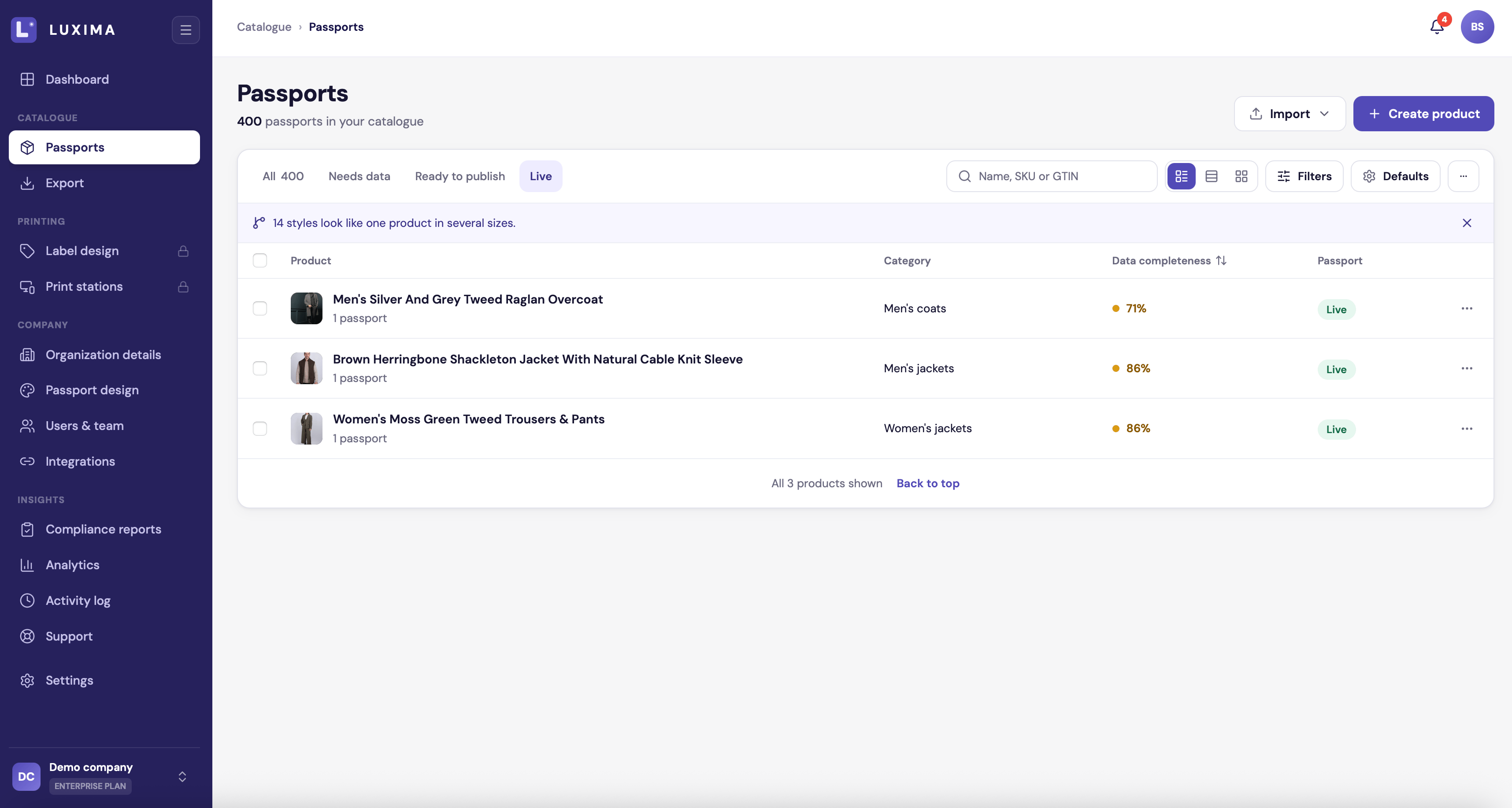
The Passports page in the list view
Tabs
See Completeness and status for what the checks are.
Search
Type a name, SKU or GTIN in the search box.Filters
Click Filters to narrow the list by:- Status: Available, Paused, Archived or Trash
- Passport: Live or Draft
- Category
- Completeness: 80%+, 50-79% or Below 50%
Views
Three icons switch between a list with large images, a compact list and a grid. LUXIMA remembers your choice.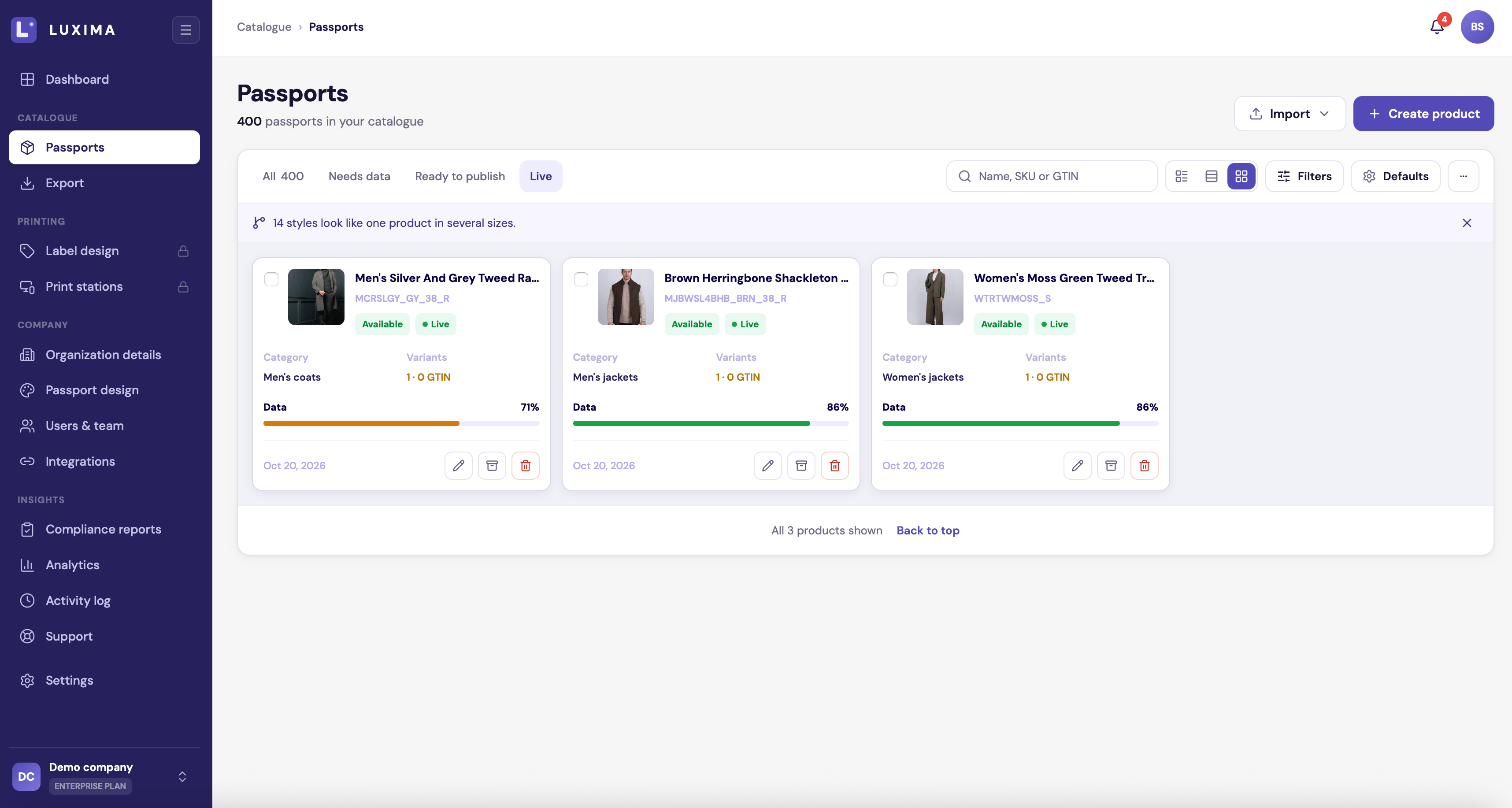
The same products in the grid view
Sorting
New products come first. Click the Data completeness column to sort by lowest first, then highest first, then back to newest.What a row shows
- The product image and name. Click the name to open the editor.
- Its sizes and number of passports, for example “Size S-XL · 3 passports”.
- Its category, or “Missing category”.
- Its data completeness as a percentage.
- A Live or Draft badge.
Act on several products at once
Tick the boxes on the left to select products. Tick the box in the header to select every product loaded so far, or click Select all matching to select everything that matches your search and filters. The bar that appears offers:Other buttons
- Create product adds a product by hand. See Create a product.
- Import has Upload CSV / Excel and Connect integration.
- Defaults opens Product defaults.
- The … menu at the top has QR exports, where you can download earlier QR exports again, and Trash.
The create, import and bulk buttons appear only if your role can manage products. With a read-only role you can browse and open products.