

Workflows merge your sources
You pick one or more sources. LUXIMA reads each one, matches the products across them, and fills each field from whichever source has it.- One source. If you only have a website, LUXIMA imports what the website shows.
- Two or more. If you have a website and a spreadsheet, LUXIMA uses both. Something missing on the website but present in the spreadsheet is filled from the spreadsheet, and the other way round.
- AI estimation, last. When your sources have been read and something is still empty, AI estimation can try to fill it. It is the fallback for when everything else has nothing. Estimates are marked so you can check them.
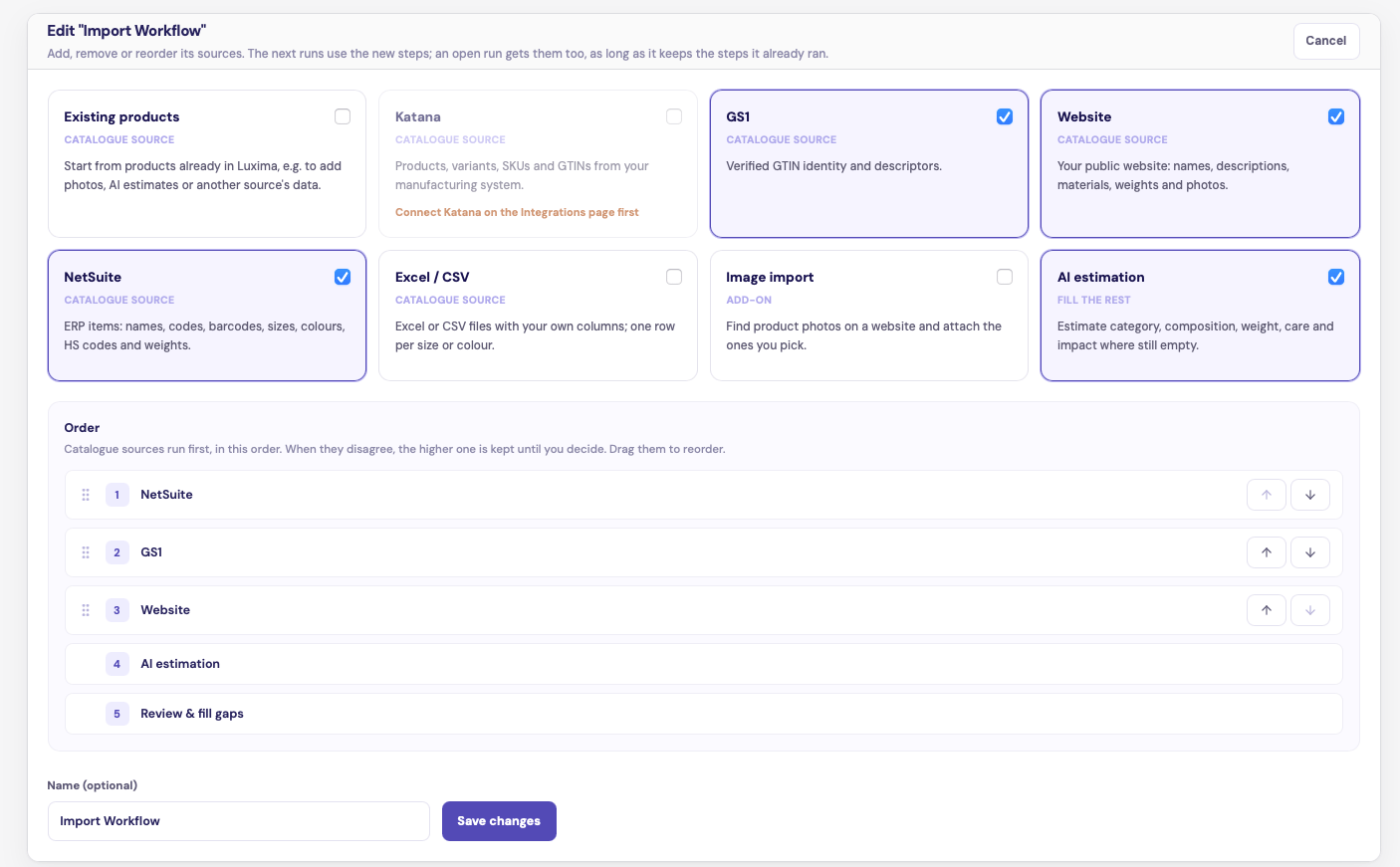
A workflow that merges NetSuite, GS1 and a website, then lets AI estimate what is left
Sources
Which sources you can use depends on your plan. See Integrations.
Where to start
- Open Integrations and click Build a workflow.
- Or, for a spreadsheet only, go to Passports, click Import, then Upload CSV / Excel.
To run an import, your role needs full access to both products and integrations.
The steps of a workflow
1
Pick your sources
Tick the sources you want. They appear in the Order list. Drag them, or use the arrows, to put them in the order you want. AI estimation and Review & fill gaps always come last.Give the workflow a name if you like, then click Start workflow.A greyed-out tile tells you what it needs first, for example “Connect Katana on the Integrations page first”.
2
Field sources
Decide which source wins when two of them disagree about a field.
3
One step per source
LUXIMA reads each source in turn. The first source gives you the list of products. Later sources fill in what is still empty on those products.
4
AI estimation (optional)
Let AI estimate what no source could provide.
5
Review & fill gaps
See what each product is still missing, fill gaps in bulk, and settle any differences.
6
Import
Click Import products to catalogue. This is the moment the products are written.
When sources disagree
Sources run in the order you set. If two give different values for the same field, the one higher in your order is used until you decide otherwise. On the Field sources step you can change the order for single fields. For example, trust GS1 for GTINs but your spreadsheet for weights. You also choose whether that applies to this run only, to this saved workflow, or to every import. “Luxima” in that list means the value a product already has in your catalogue.Products a later source adds
A later source only fills in the products already in the workflow. If it also contains products that are not on your list, they appear under Not on your list, and you can add them.AI estimation
AI estimation looks at each product in the workflow and estimates what is still empty: category, department, composition, colour and weight.- It only fills empty fields. It never replaces a value that came from one of your sources.
- It suggests a composition only when the product’s own name or description names the fibre.
- Run it for every product with Estimate for all, or tick products and use Estimate selected. Then tick the estimates you want to keep and click Add AI estimates.
- Estimates are tagged, so you can check them on the Review & fill gaps step and on the products afterwards.
- An estimated fibre composition is shown as estimated on the public passport until you confirm it. See Materials.
Products already in your catalogue
LUXIMA matches incoming products to existing ones by GTIN, SKU and product code.- A match is updated, not duplicated. It shows as In Luxima.
- A match in the trash is restored.
- No match is a New product.