

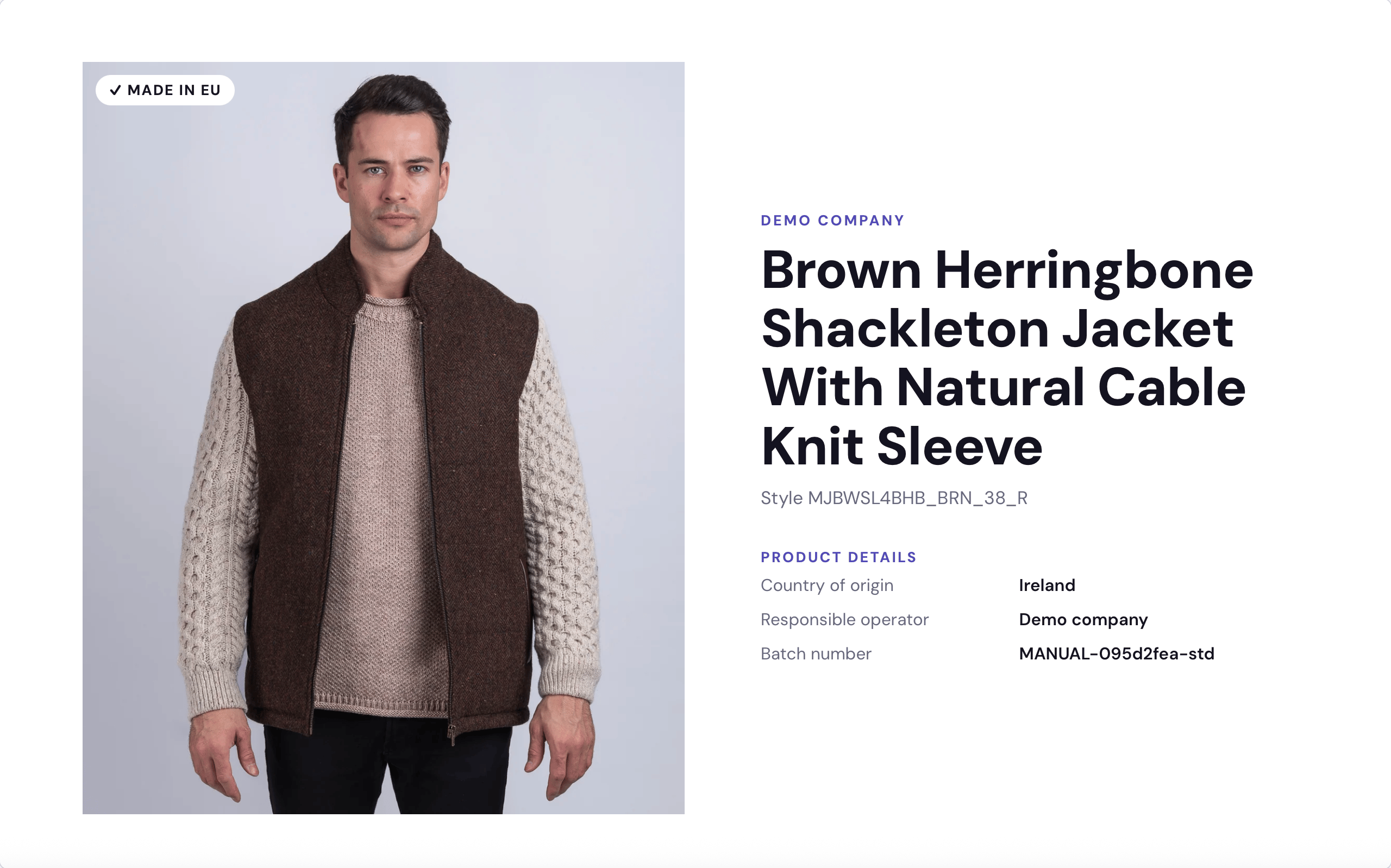
The top of a passport on a desktop screen
What is on the page
The page shows these sections, in this order. You choose which ones appear and which fields they show in the design builder.
Any custom blocks you added appear between these sections.
Missing data
A section or field with no data is left out. Visitors never see empty boxes. This also means a passport with little data looks short, so check a product’s completeness before you publish.Notes the page adds by itself
- Estimated composition. If a fibre composition was estimated and you have not confirmed it, the page says it is not yet confirmed by the brand. See Materials.
- Animal-origin parts. “Contains non-textile parts of animal origin”, when you ticked that on the product.
- Certificates. Expired certificates drop off automatically.
- The badge. “Made in EU” appears only when the product’s country of origin is in the EU.
One passport per variant
Each size and colour has its own page. Scanning the QR code on a size M jumper opens the size M passport.On phones, tablets and computers
The page is built for phones first and adapts to larger screens. On a wide screen, the photo sits on the left with the product details beside it. The page is in English.When a passport is not available
See Publish a passport.