

- Every new product gets your certificates.
- You can hide a certificate on a single product in the product editor.
- An expired certificate comes off passports automatically.
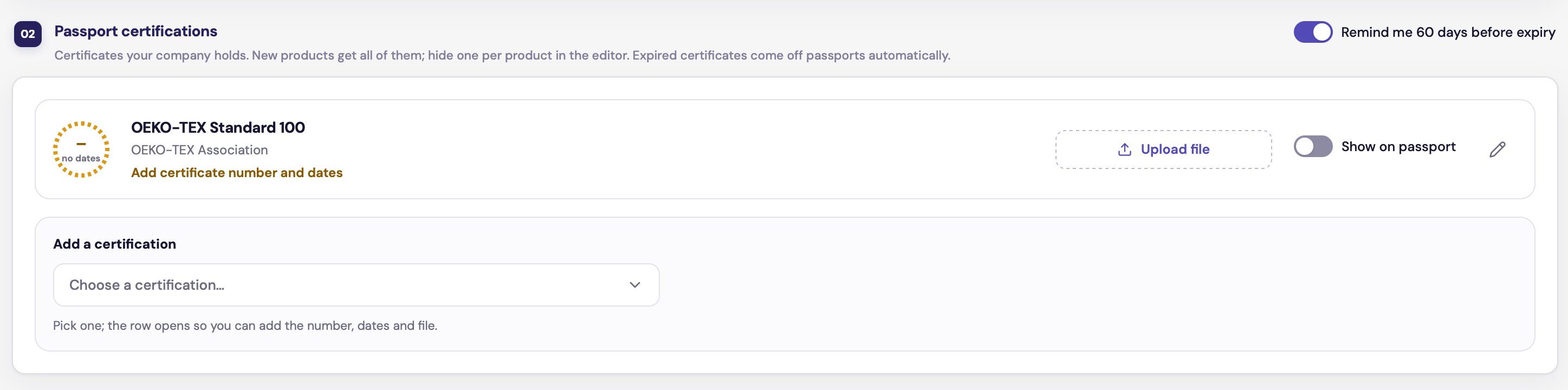
A certificate that still needs its number and dates
Add a certificate
1
Choose it
Click Choose a certification…. LUXIMA suggests certificates for your industry. Type to filter the list.Not listed? Type its name and click Add custom.
2
Fill in the details
The row opens so you can add:
- Certificate number
- Valid from and Valid until, typed as dd/mm/yyyy
- Certificate file
The certificate file
Click Upload file and choose a PDF, JPG, PNG, HEIC or WEBP file of up to 20 MB. The file is kept for auditors and compliance reports. It is never shown on the public passport. The passport shows the certificate’s name and the date it is valid to.Status
Under each certificate you see its status:Show or hide on passports
Each certificate has a Show on passport switch.- Switch it off to keep a certificate on file without showing it publicly.
- An expired certificate cannot be shown. Once you enter the new dates, it goes back to how you had it set.
Expiry reminders
Switch on Remind me 60 days before expiry to get emails before a certificate runs out.- LUXIMA sends an email 60 days before, 7 days before, and on the day it expires.
- The email goes to your Compliance contact. If none is set, it goes to the company owner.
- When you enter new dates, the reminders start again for the new end date.