Users & team in the menu is where you add colleagues and decide what each of them can do.
Owners and Admins can manage the team.
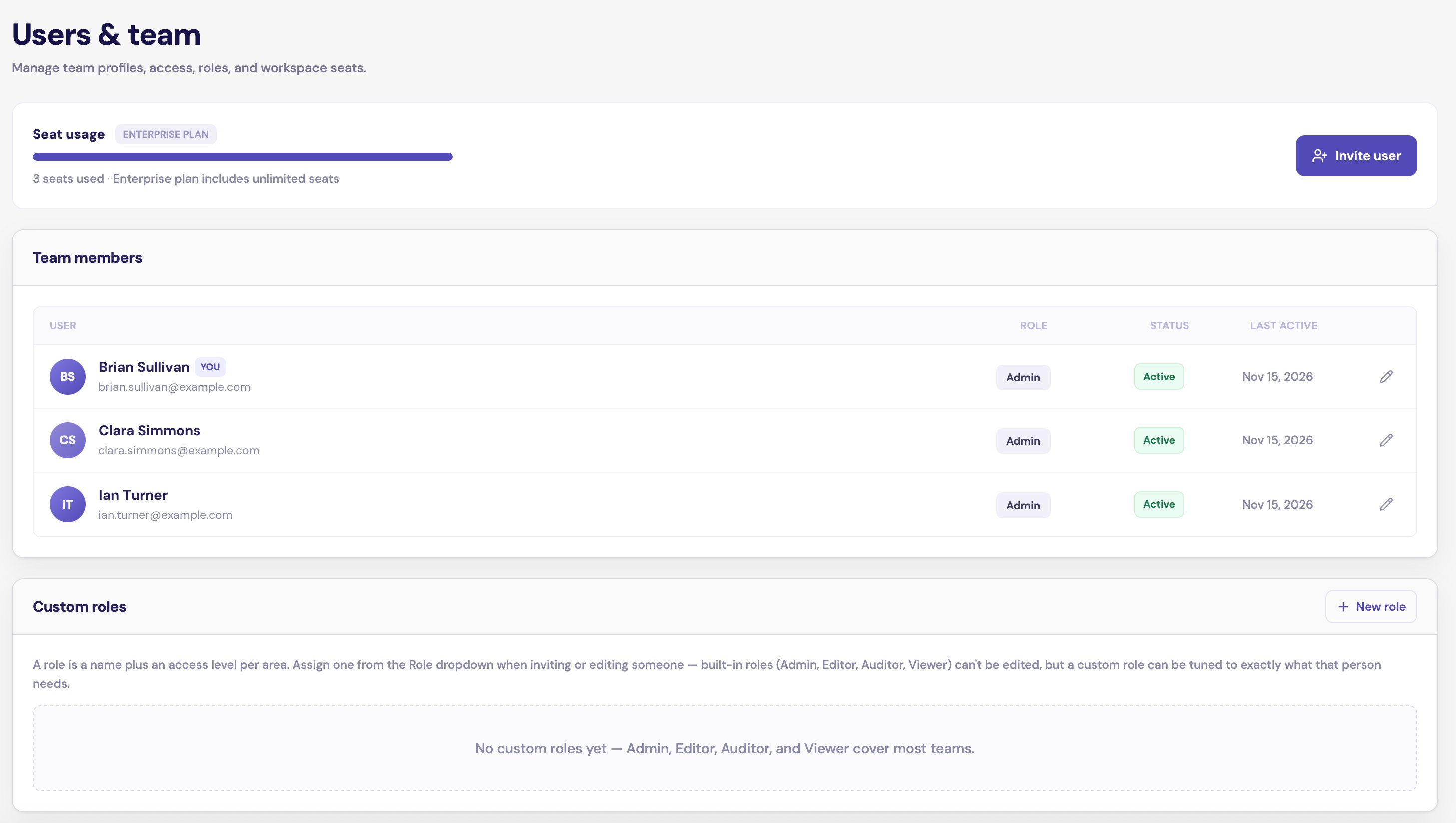
The Users and team page with a Seat usage card and an Invite user button, a Team members table listing three people with their role, status and last active date, and a Custom roles panel with a New role button

Users & team, with example names

Seats

The Seat usage card shows how many seats you use and how many your plan includes. Each active team member and each pending invitation takes one seat. When all seats are taken, a new invitation fails with “This plan allows up to … active or invited users.” Disable someone who no longer needs access, or change your plan. See Plans and the free trial.

Invite someone

1

Open the invitation

Click Invite user.
2

Enter their details

Fill in their Email address and choose a Role. Full name and Job title are optional.What this role grants shows what the role can do before you send. See Roles and permissions.
3

Send it

  • Send email invite emails them an invitation. Available on paid plans.
  • Create & copy invite link gives you a single-use link to send yourself, for example by chat. Available on every plan.
An invitation is valid for 7 days. After that the person sees “Invitation not found or expired”, and you need to invite them again. The person opens the link, sets their name and password, and clicks Activate account. Someone who already has a LUXIMA account enters their existing password, and your company is added to their account. See Sign up and log in.
You cannot invite someone as an Owner. The Owner is the person who created the company.

The team list

Team members shows each person’s name and email, their role, their status (Active or Disabled) and when they were last active.

Change someone’s role or details

Click the pencil icon on their row. You can change their Full name, Job title and Role. Click Save changes.
  • Their email cannot be changed.
  • You cannot change your own role.
  • An Owner’s account cannot be changed by anyone else.

Remove someone’s access

Open the person with the pencil icon and switch off Account access. Click Save changes. A disabled person cannot log in to your company, and their seat is freed. They stay in the list, and the record of what they did is kept. Switch Account access back on to let them in again.

One person in several companies

One email address can belong to up to 3 companies. The person uses the same password for all of them, but their role and profile are separate in each. They choose a company when they log in, and can switch from the bottom of the menu.

Messages you might see