

Compliance reports are part of Starter and above. On the Free plan the page shows what the feature does and how to upgrade.
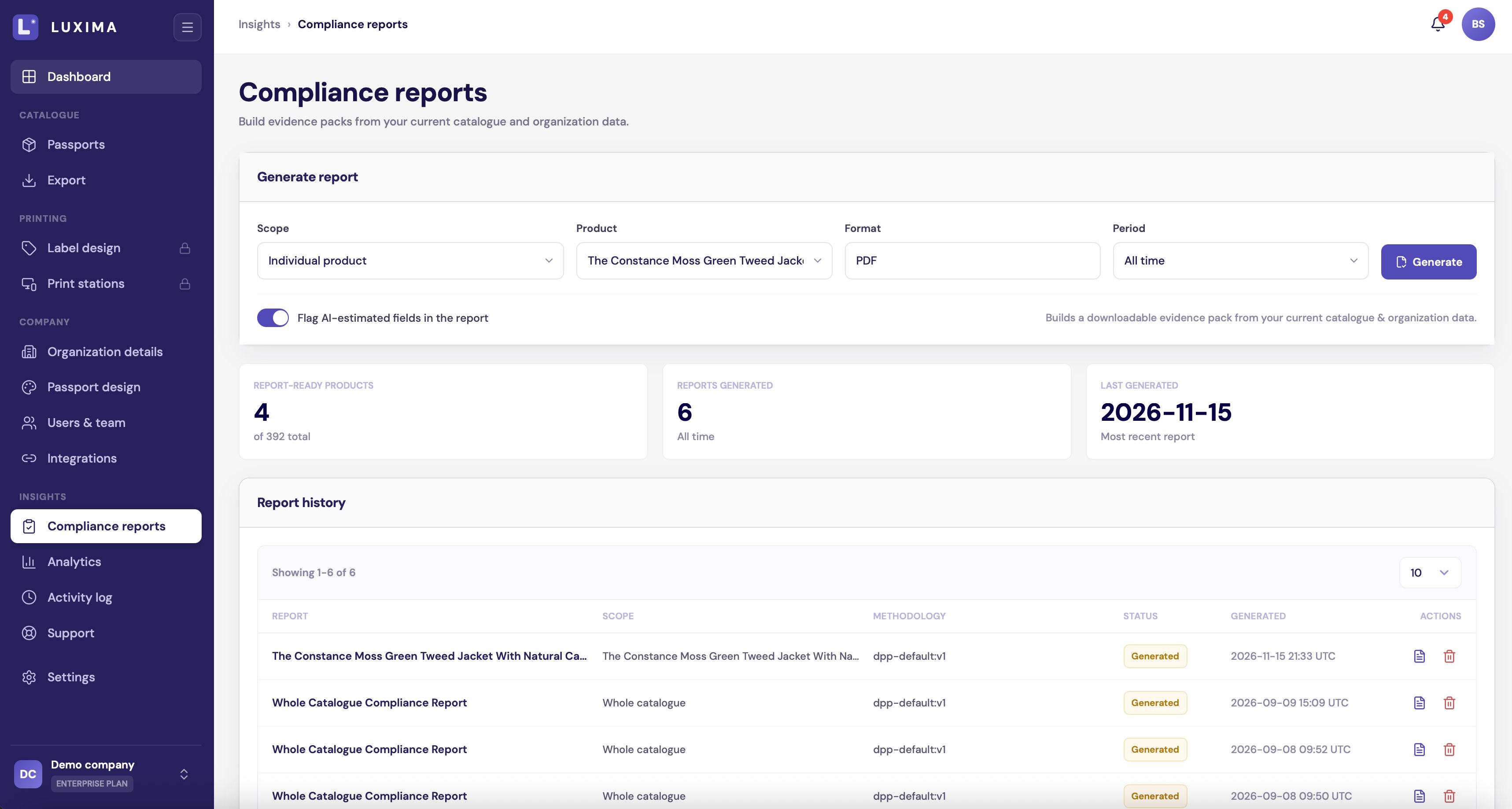
The Compliance reports page: generate a report at the top, your earlier reports below
Who can use it
Generate a report
1
Choose the scope
Under Scope, pick:
- Whole catalogue
- Category, then search for the category
- Individual product, then search for the product
2
Choose the period
For a category or the whole catalogue, Period limits the report to products updated in that time: All time, Last 7 days, Last 30 days, Last 90 days or This year.
3
Generate
Click Generate. The report appears in Report history.
What a report contains
A report for one product has:- Company information, with your certificates and sourcing policy
- Methodology and data assurance
- Product identity
- Materials and composition
- Environmental impact
- Supply chain and traceability
- Certifications and compliance
- Durability, care and repair
- Circularity and end-of-life
- Data sources and verification
- Environmental calculation evidence
Environmental calculation evidence
This part shows how each impact figure was worked out: the inputs, the factors used, and the reference database. It covers carbon footprint, water, energy and land use. The impact figures and their evidence are captured at the moment you generate the report, so they show what was true then. The other sections are read from your current data when you open the report. To keep a fixed record, download the PDF.View, print or download
In Report history, click View report. The report opens in a new tab with:- Download PDF
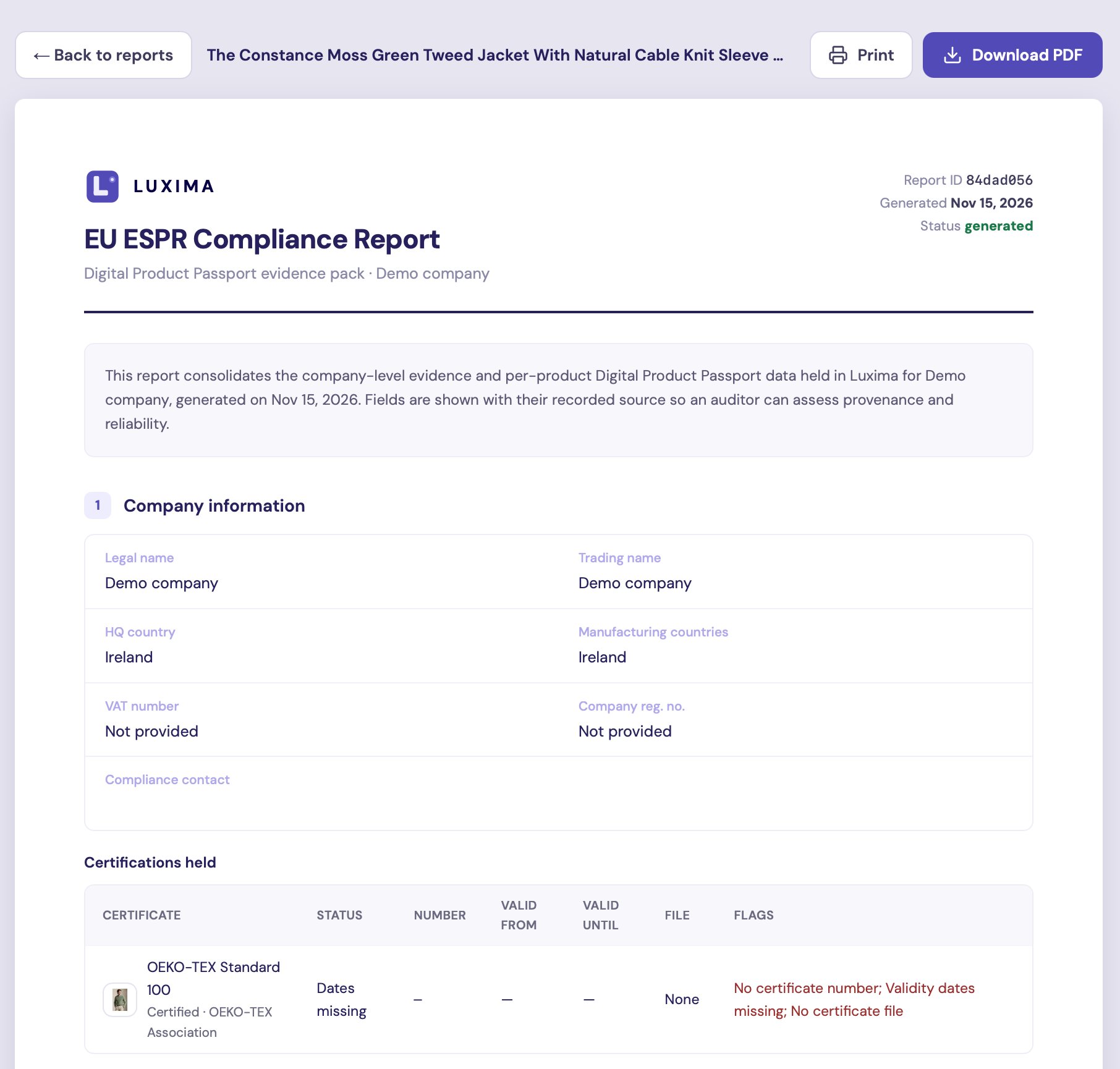
The top of a report for one product
Delete a report
Click Delete report in its row and confirm. This cannot be undone.Give an auditor access
Invite the auditor to your team with the Auditor role. They can see your products, integrations and passport design, and have full use of reports. They cannot change your data or your team. See Users and team. When their work is done, switch off their Account access.Tips
- The Report-ready products card counts products with a published passport. Publish before you generate.
- Keep your certificates in date and their files uploaded. They appear in the company section.
- Generate a new report after you change product data, so the report matches your catalogue.